Circulations
The circulations section contains all the information regarding your check-outs, check-ins, reservation requests, overdue items etc.
As a generic term, we also call this as "Media bookings" section.
List Check-outs
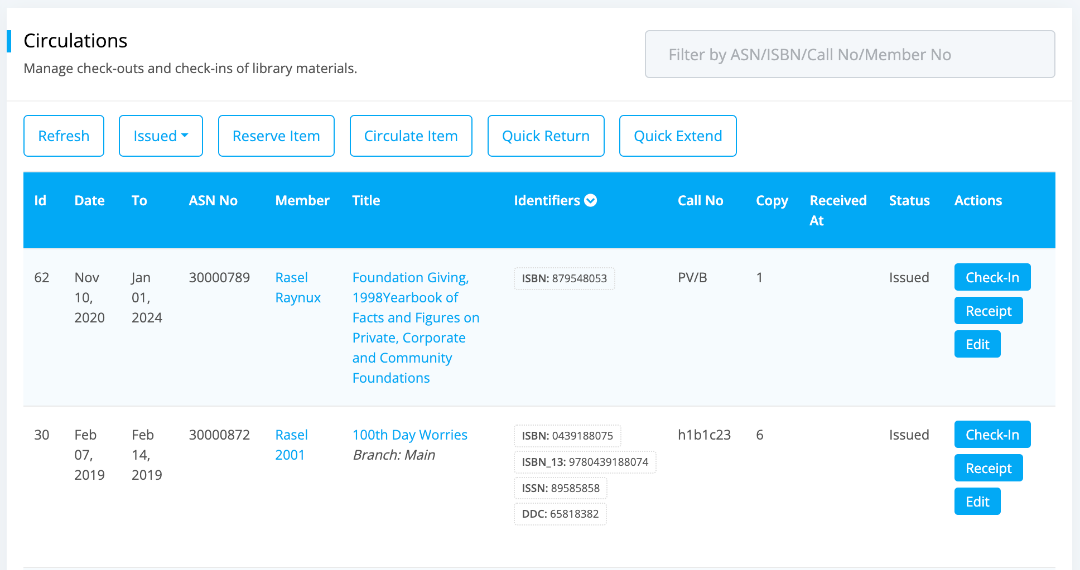
You can access the list of all circulations related entries in this section under different status filters such as Pending, Reserved, Issued, Overdue, Cancelled, Returned etc.
- Please go to the
Dashboard -> Circulations -> Circulationspage. -
Circulation records will be displayed as shown below:
-
Now you can view all the different status filters in the
Alldropdown menu.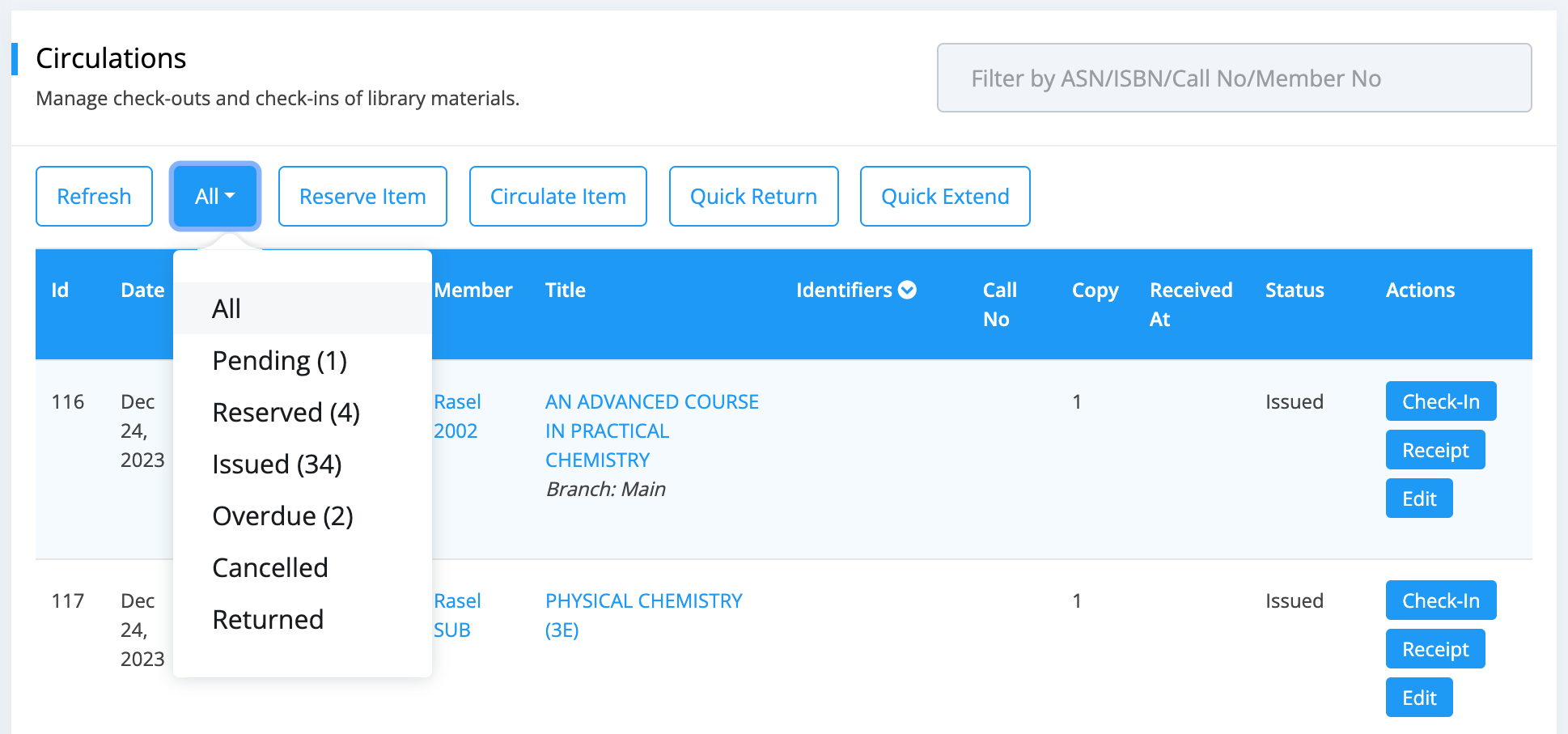
-
If you click on the
Identifierscolumn then you can sort the circulations using different types of identifier like isbn, isbn13, issn, asin and more.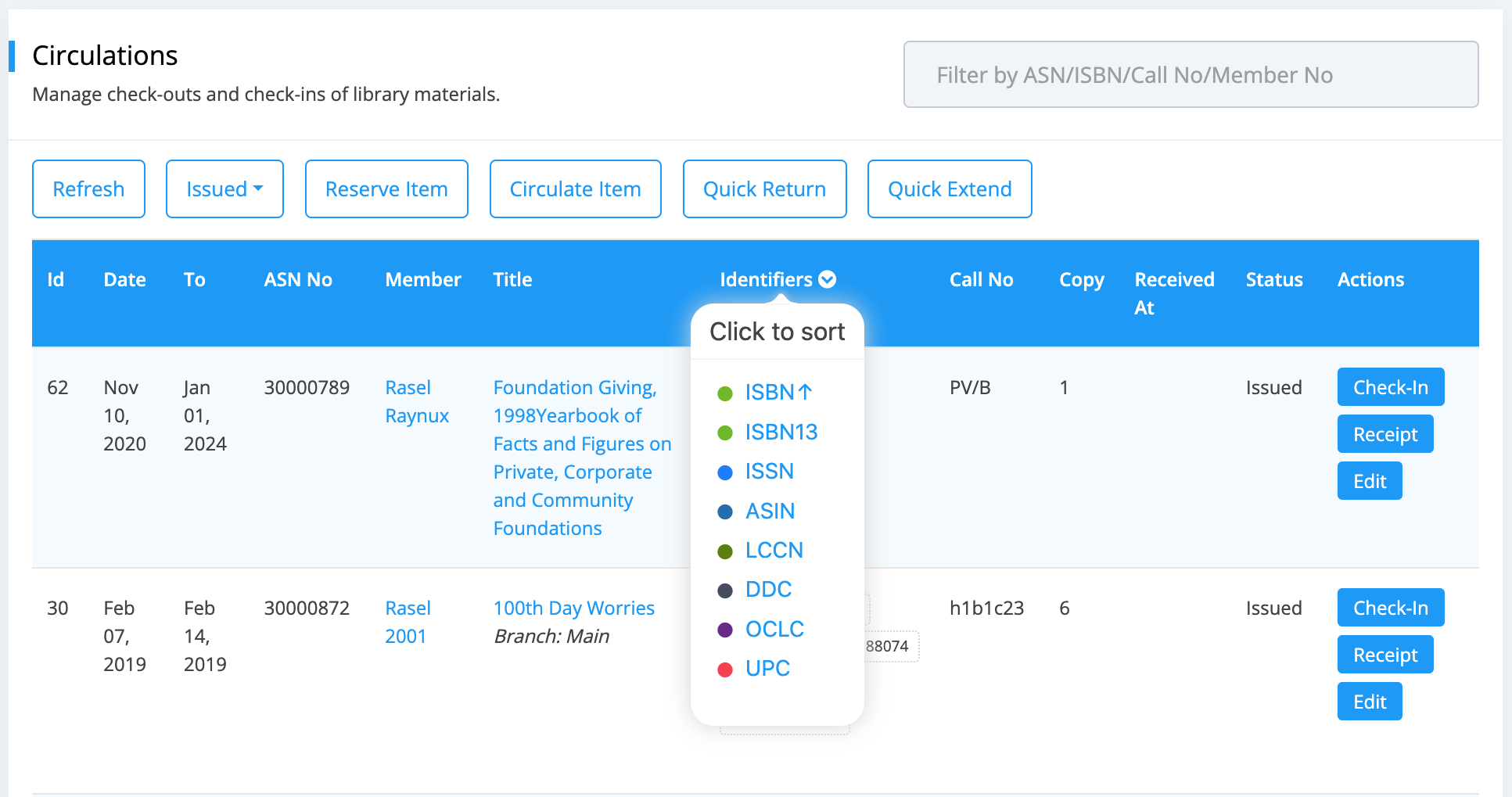
Check-out Item
To check-out or loan an item to a member of your library, please follow the below steps:
- Please go to the
Dashboard -> Circulations -> Circulationssection. -
Click on the
Circulate Itembutton.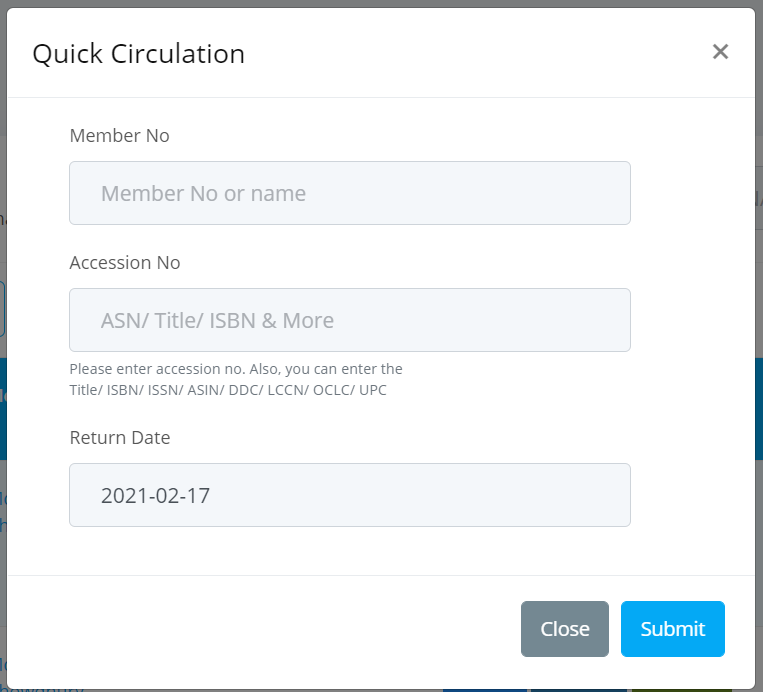
-
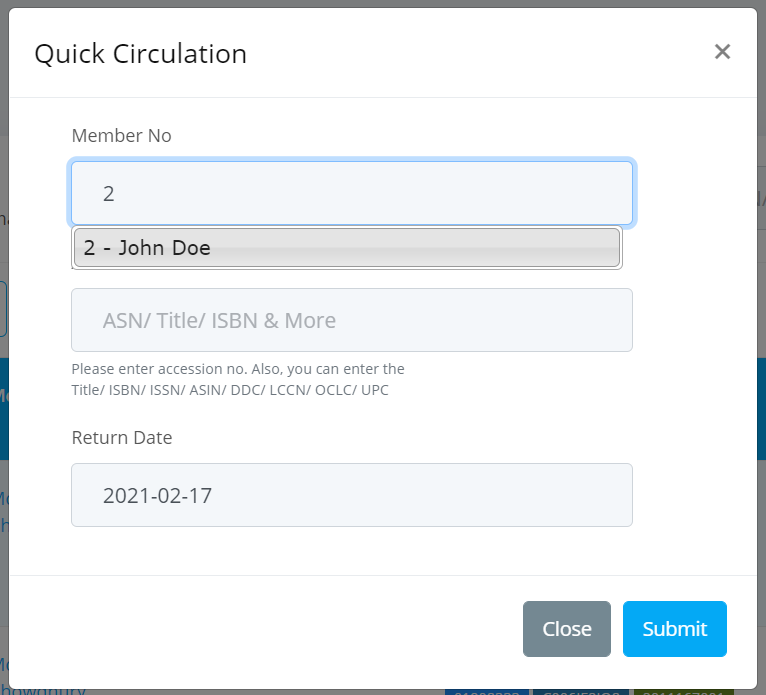
First enter member number or member name. An auto-select list will appear, please select the member from the list.
-
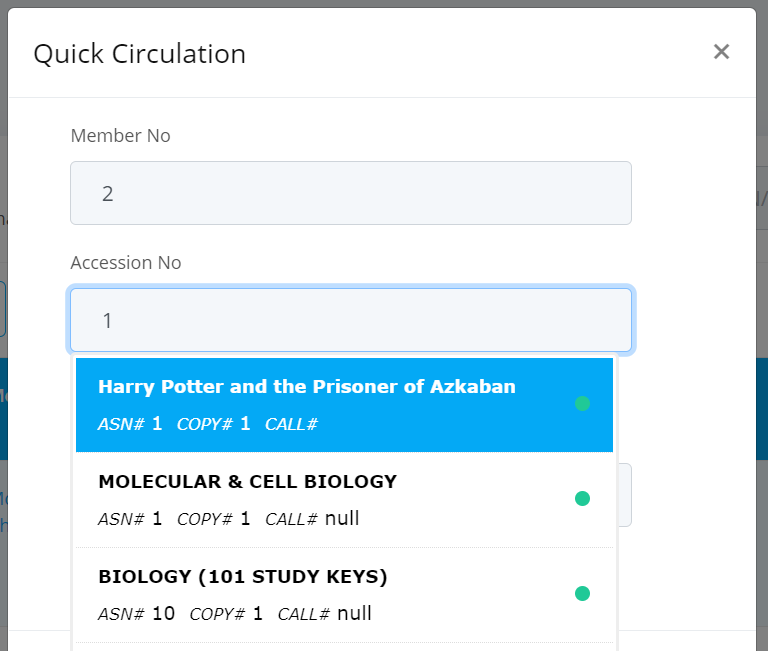
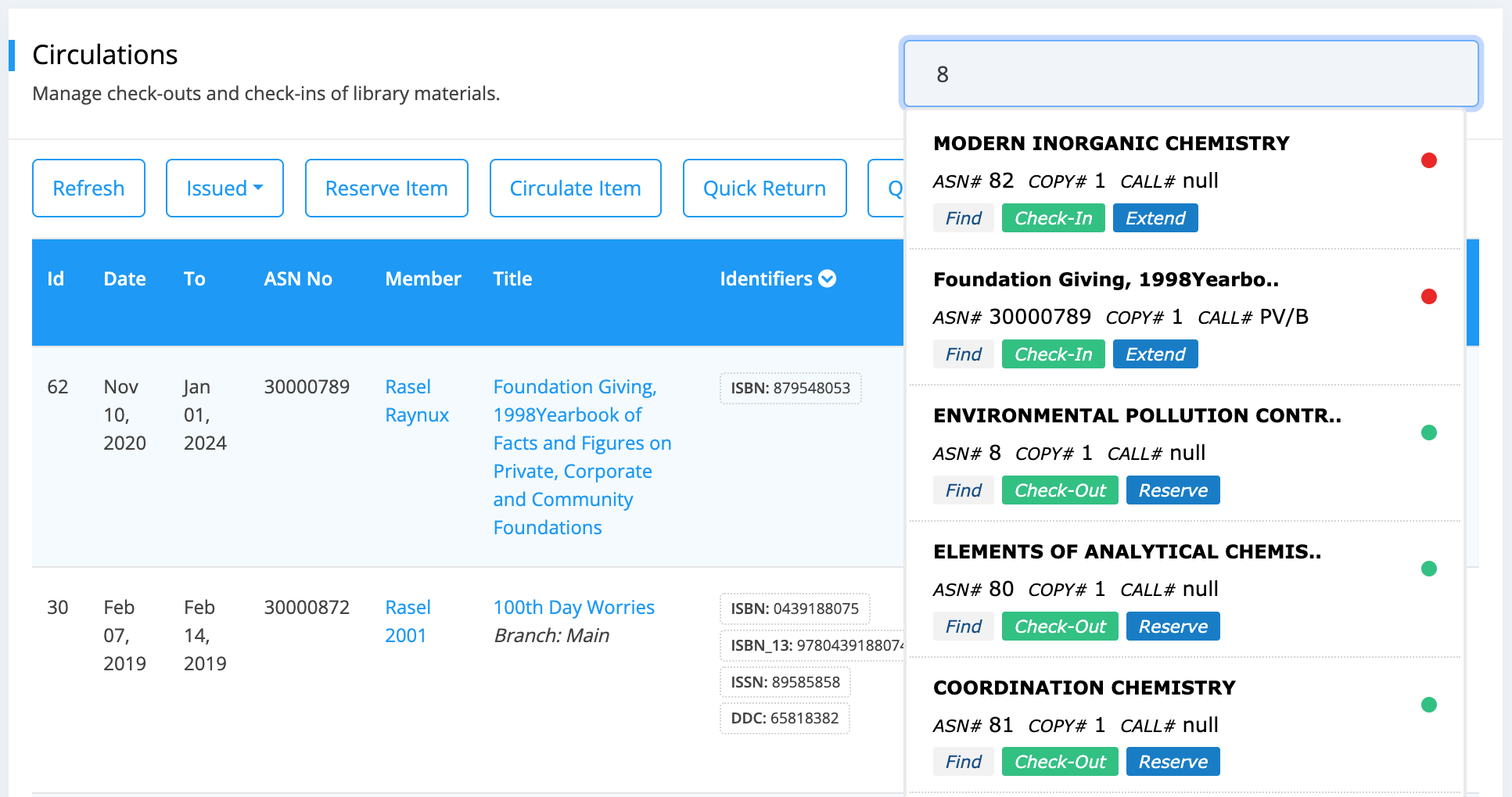
Then enter accession number, book title or any identifier like isbn, asin, lccn and more. An auto-select list will appear with green / red indicator, please select the item with green indicator. Red indicator means, the item is not available for check-out.
-
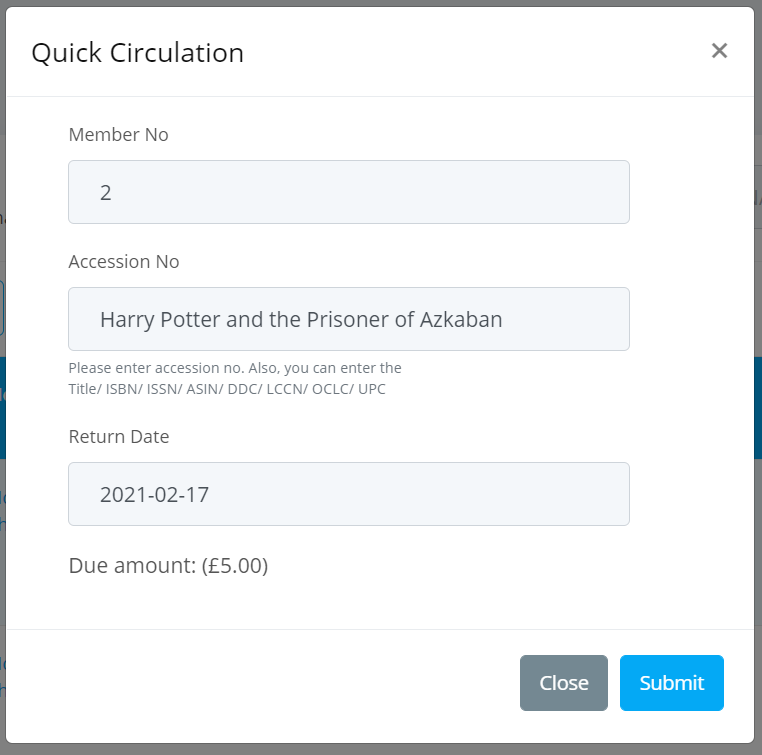
Change the return date if you wish to.
-
Click on the
Submitbutton when you are done.
Check-in Item
To check-in or receive an item from a member, please follow the below steps:
- Please go to the
Dashboard -> Circulations -> Circulationssection. -
Click on the
Quick Returnbutton. -
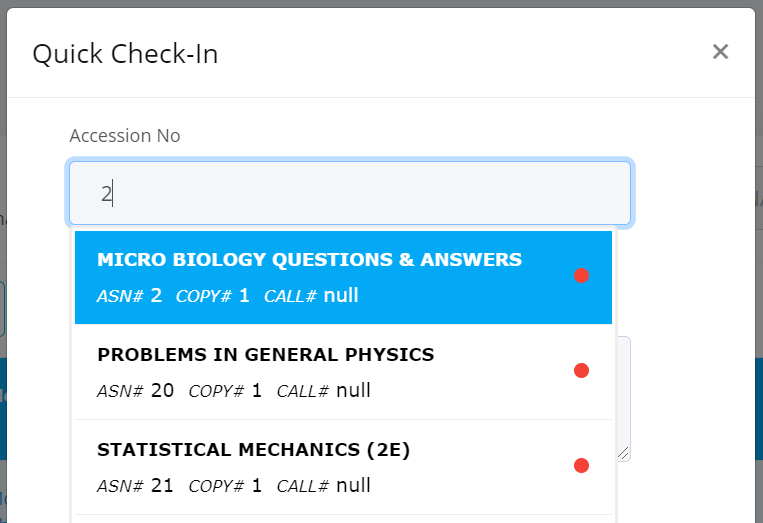
Enter the accession number, book title or any identifier of the item that you want to check-in. An auto-select list will appear with green / red indicators. Your item should have red indicator.
-
Select the item from the list.
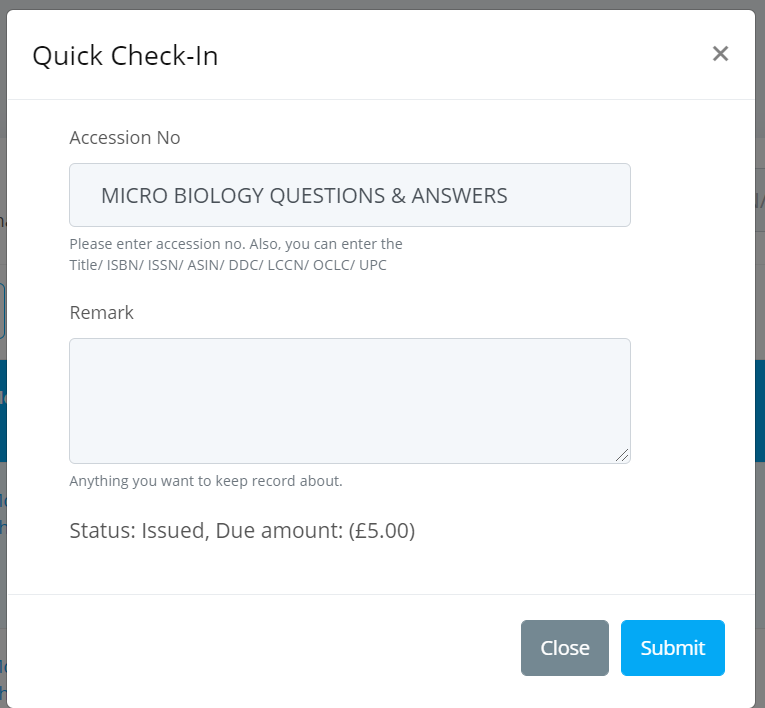
-
Enter any remark note in the remark input box, if you want to.
- Click on the
Submitbutton when you are done.
Reserve Item
To reserve an item on behalf of a member, please follow the below steps:
- Please go to the
Dashboard -> Circulations -> Circulationssection. - Click on the
Reserve Itembutton. -
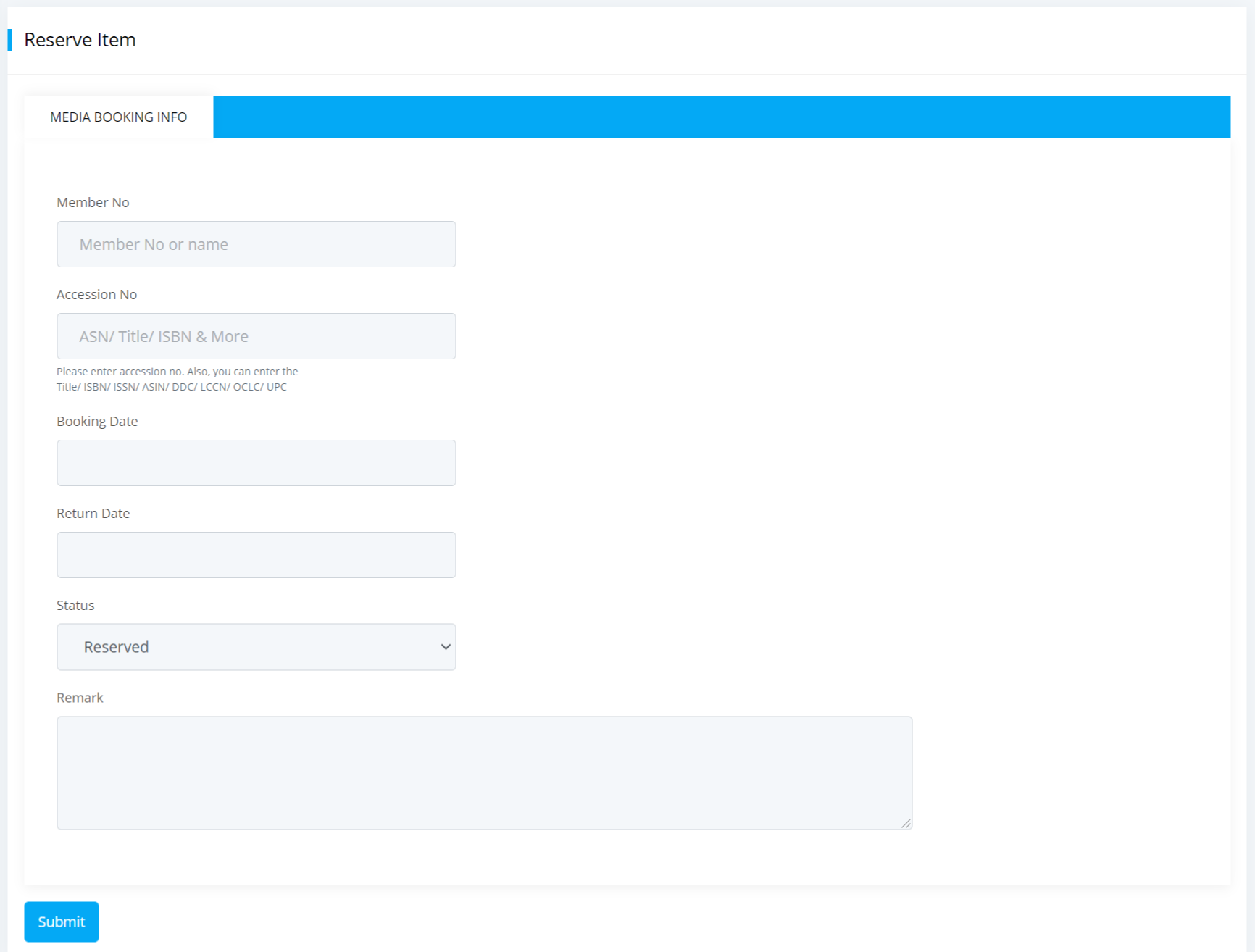
The Reserve Item form will be displayed as shown below.
-
Enter member number or member name for whom you want to reserve.
- Then enter the accession number, title or any identifier of the item that you want to reserve.
- Also enter booking date and return date of the item.
- Select status as Reserved.
- Click on the
Submitbutton when you are done.
Change Return Date
You can update / extend return date of any circulation record specially that has already been issued but not yet returned.
To update or extend an item for a member, please follow the below steps:
- Please go to the
Dashboard -> Circulations -> Circulationssection. - Click on the
Quick Extendbutton. -
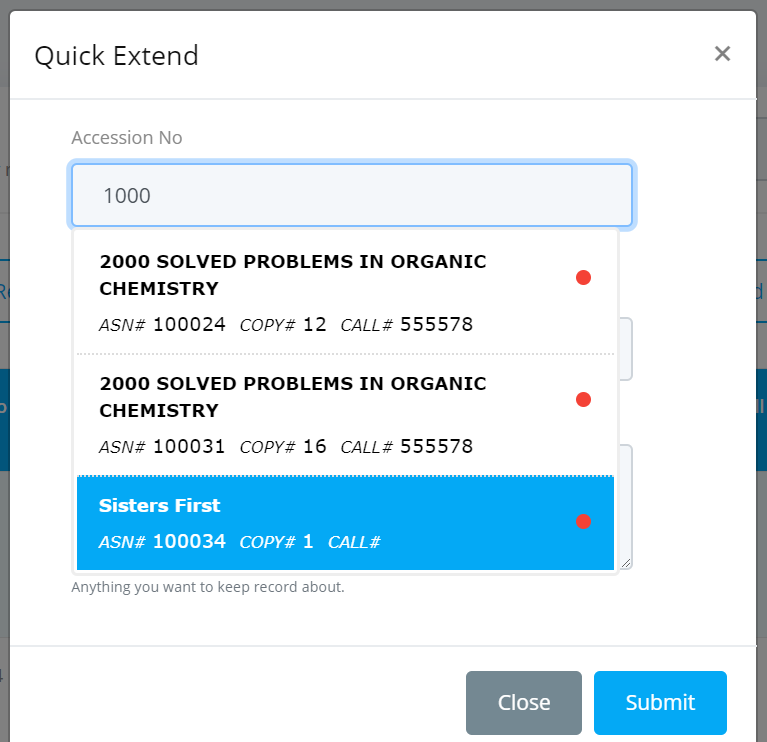
Enter the accession number or isbn or title of the item you want to extend. An auto-select list will appear with red indicators.
-
Select the item from the list.
- Enter any remark note in the remark input box, if you want to.
- Click on the
Submitbutton when you are done.
Edit Check-out
You can edit any existing circulation entry, change return date, status etc from the circulations page.
To edit a circulation, please follow the below steps:
- Please go to the
Dashboard -> Circulations -> Circulationssection. -
Locate the item you want to edit from your circulation records and click on the
Editbutton next to that item. -
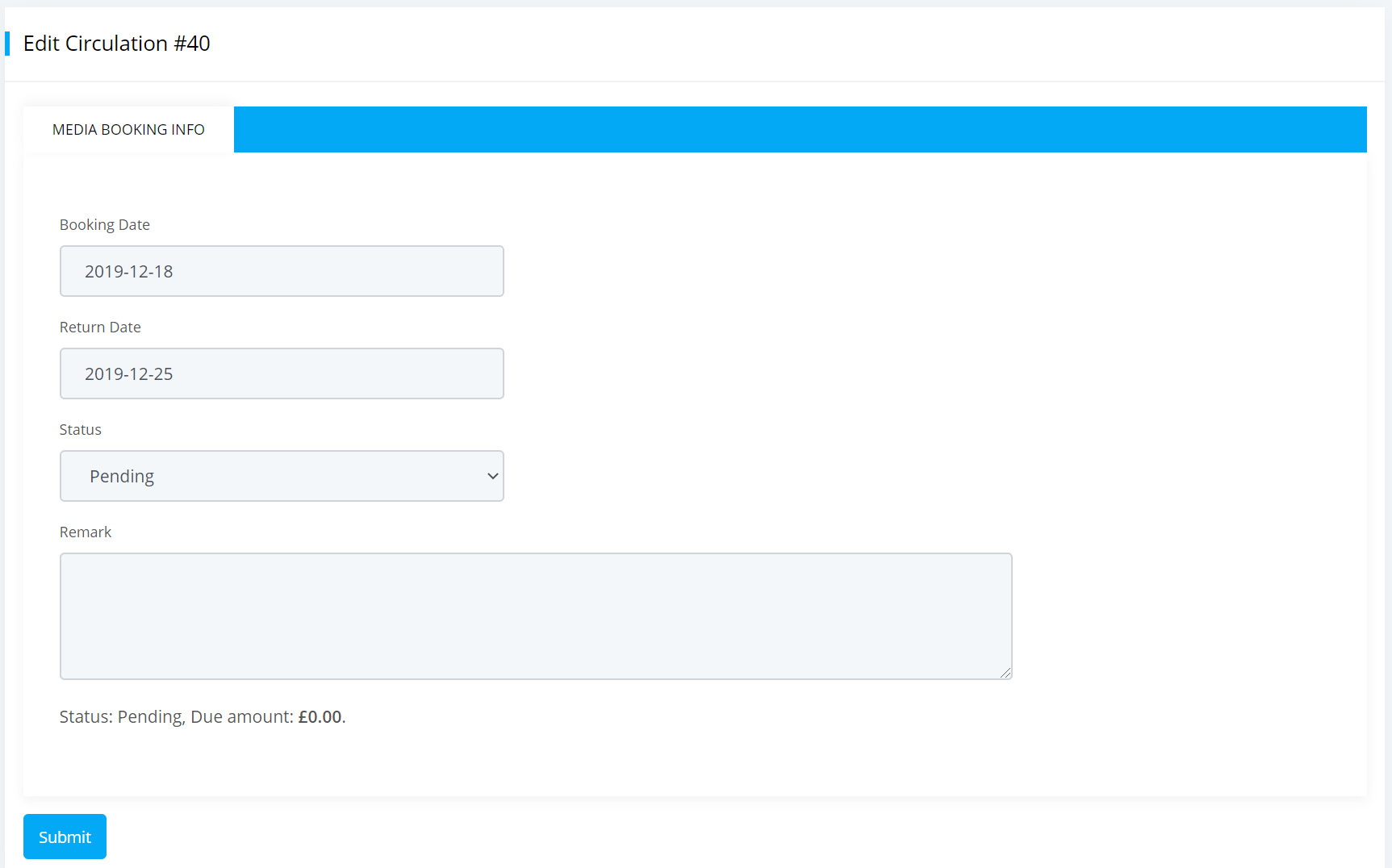
An edit circulation form will be appeared as shown below.
-
Edit or update necessary information regarding the circulation.
- Click on the
Submitbutton when you are done.
Extra Fuctionality
If you have larger amount of circulation entries then you can use our filtering option so that you can easily find any entry and perform all the circulation related activities.
To use this functionality, please follow the below steps:
- Please go to the
Dashboard -> Circulations -> Circulationssection. -
In the top corner of circulations page you can see a
Filter by ASN or ISBN or Member Noinput box. Enter accession number or isbn or member no of the item in that box.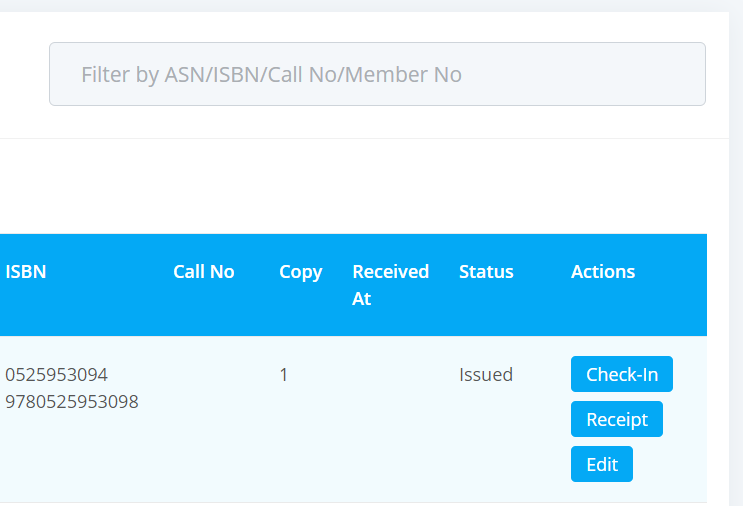
-
An auto-select list will appear, select the item from the list. All related circulations of the selected item will appear as shown below.
-
Now you can perform any action regarding your needs for circulations.
Hold Queue
The hold queue allows members to place holds on items that are currently checked out and wait in a queue until the item becomes available. Staff can manage holds, view the hold shelf, and fulfill holds from the dashboard.
For detailed instructions, see the Hold Queue page.
Circulation Issue
Keep in mind that whenever checking out books you can not able to scroll past the 10th book even though you have several more copies of the same book in your library. Because there is a cap limit of 10 items in auto complete dialogue box.